
How to Update BIOS under UEFI Mode
This full guide details the complete process to update device BIOS in UEFI mode. It covers FAT32 USB drive preparation, BIOS file deployment, UEFI boot menu access via F7/F11, and professional UEFI shell command operations including map –b, ls, and flash commands. It also provides targeted operation solutions for devices with or without a hard drive, and reminds users of power-off precautions to avoid device bricking during BIOS upgrading.
Format the USB flash drive as FAT32.
Extract all BIOS files to the root directory of the USB flash drive, then plug the USB drive into the device.
Reboot the device. After the logo screen appears, press F11 or F7 to open the boot menu.
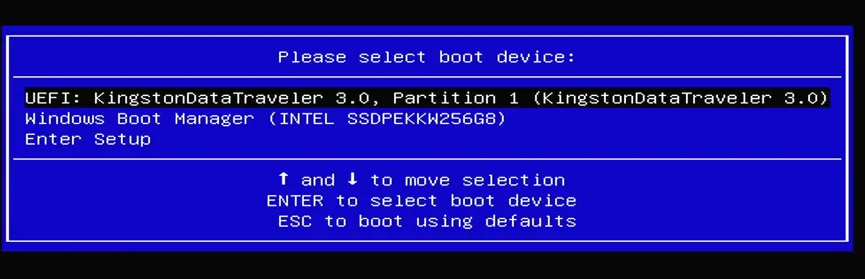
Select the USB drive with the cursor and press Enter.
If no hard disk is installed, the USB drive will be mapped as
fs0. Simply enter the commandfto start BIOS update.If a hard disk is installed, run the command
map –bto check the identifier of the USB drive first.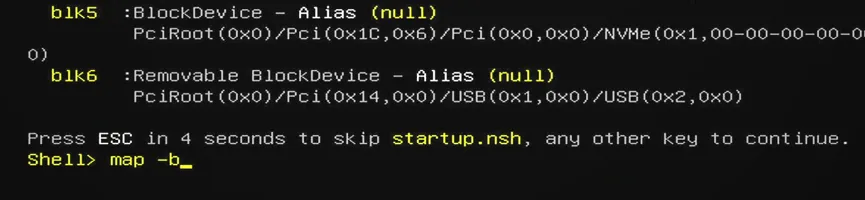
Confirm the identifier of your USB drive (example:
fs3).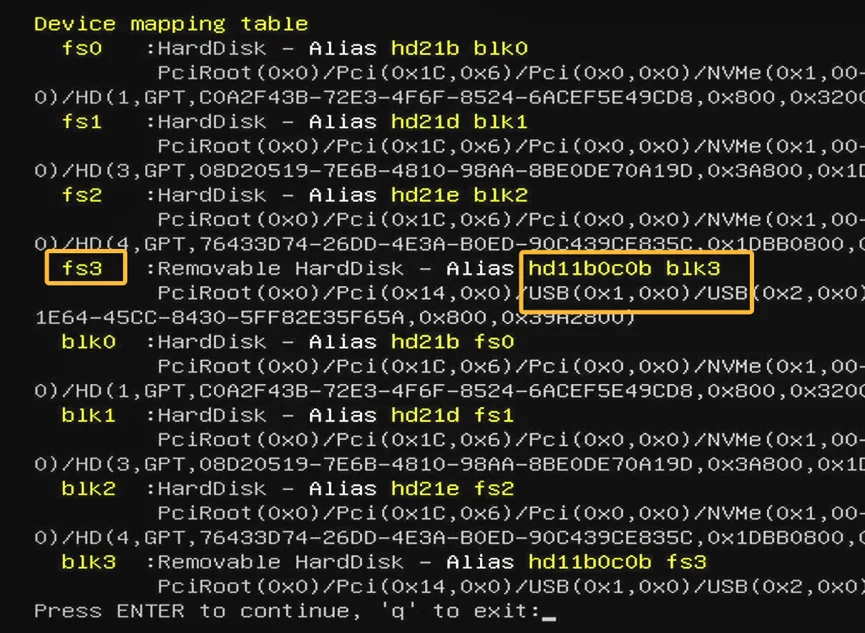
Enter
qto exit, then inputfs3:to access the USB drive, and runlsto list files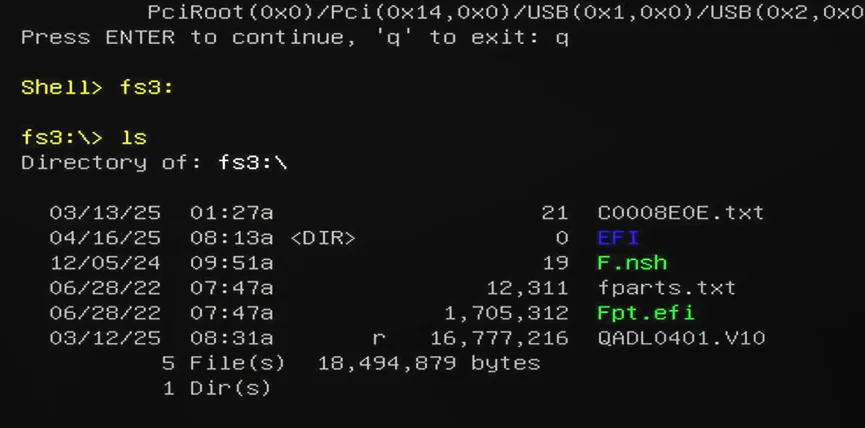
After verifying the BIOS files, type
fto initiate the BIOS upgrade.Warning: Do NOT cut off power during the BIOS upgrade. Power loss may render the device unbootable (bricked).