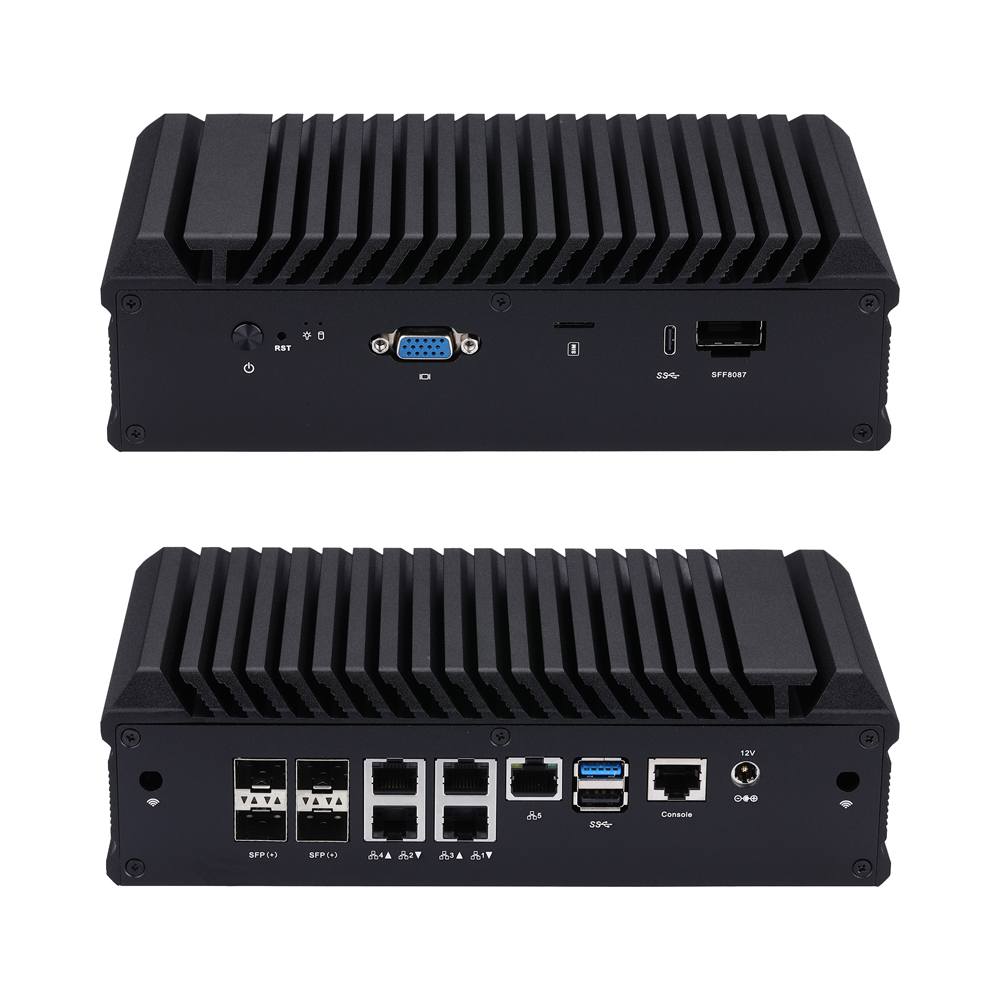
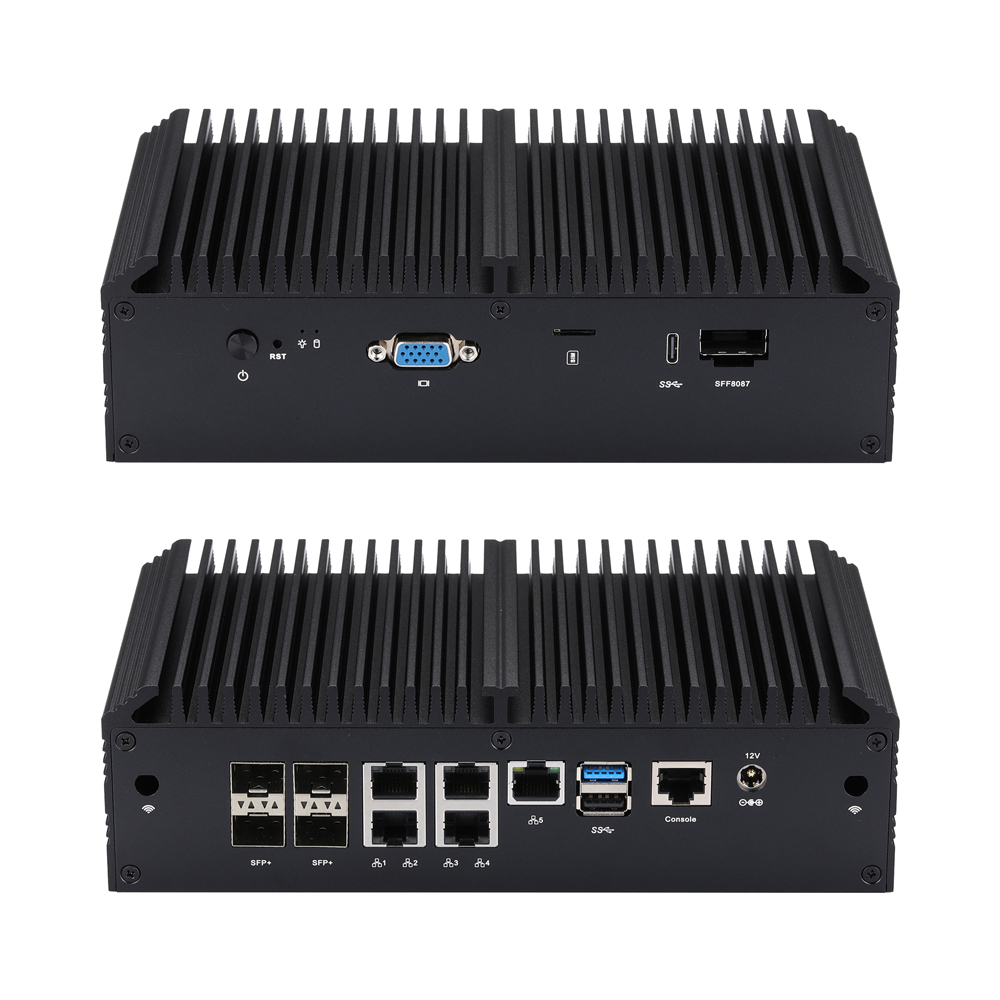
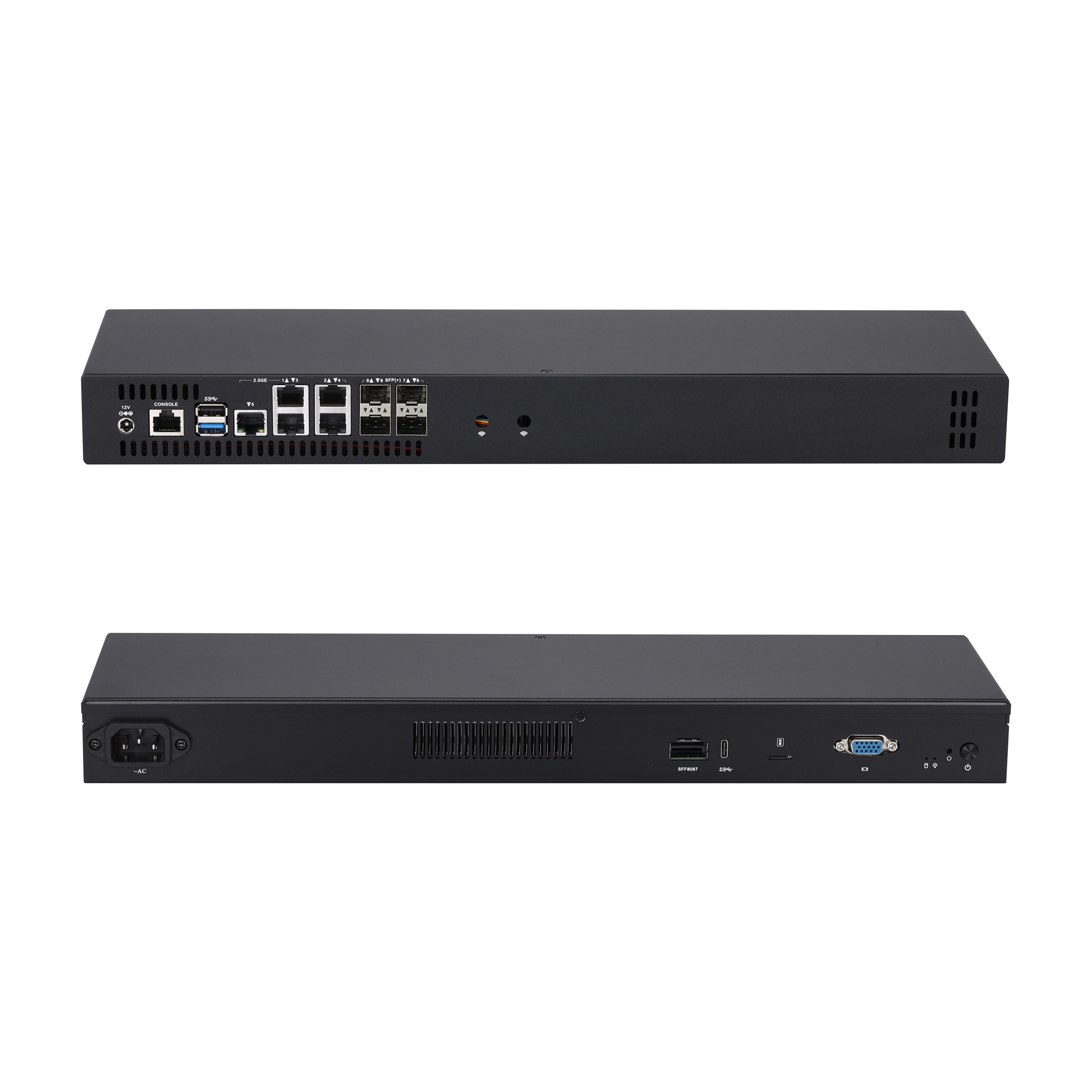
How to Update BIOS in UEFI Mode for Q20300S9 Series
Learn the official UEFI Shell BIOS update steps for Qotom Q20300S9 Series industrial motherboards and soft routers. This guide covers two complete flashing solutions: standard BIOS-only update and advanced BIOS upgrade with 10G SFP+ port speed calibration, specially optimized for Intel Denverton C3808 and C3958 processors. Follow standard pre-operation preparation including HDD removal and FAT32 USB setup to avoid update errors. Note that SFP speed modification requires MAC address rewriting to ensure stable network performance.
⚠️ Precondition: Remove all hard drives from the motherboard before operation. Otherwise, the USB drive disk identifier may change. The screenshot shown is for reference only.
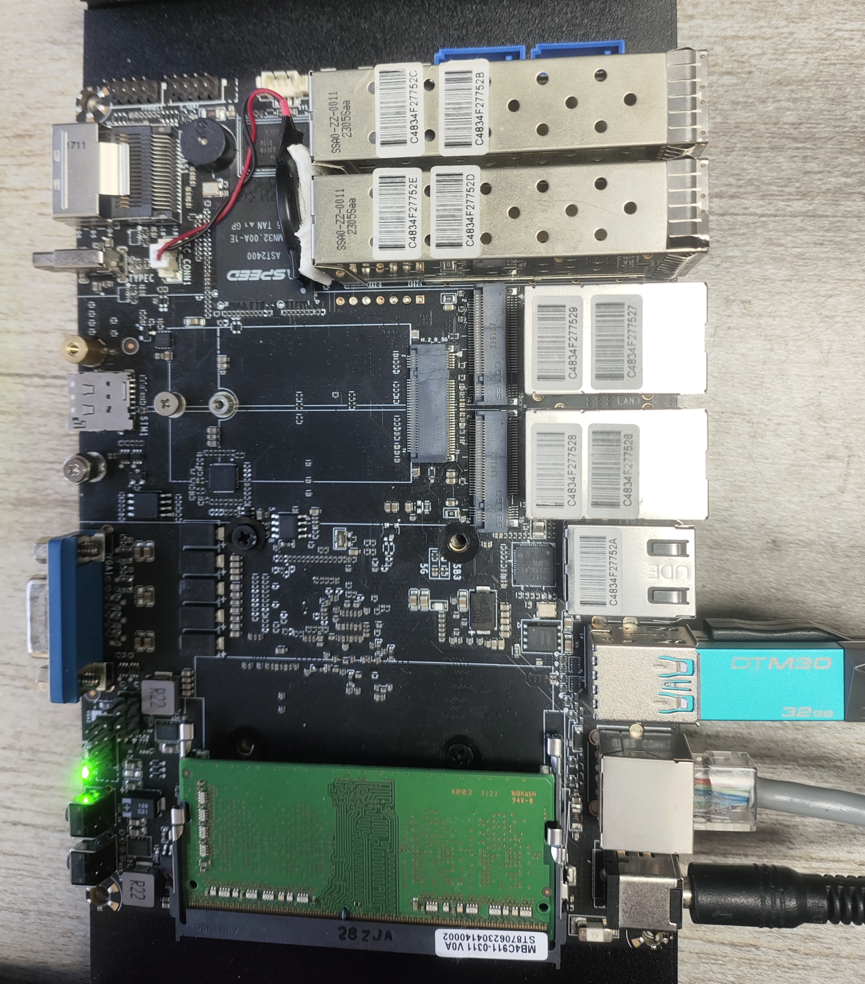
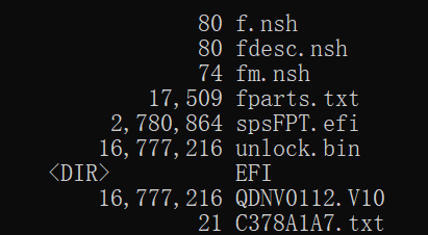
Prepare a USB flash drive formatted to FAT32 Copy the BIOS files to the root directory of the USB drive.
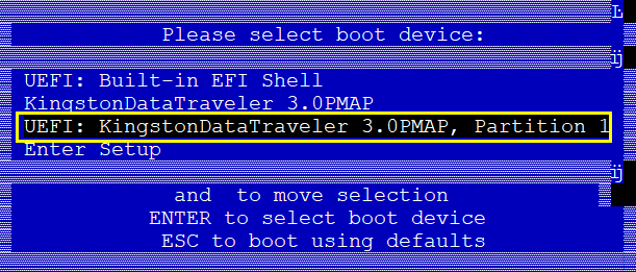
Power on the device, press F7 to boot from the USB drive.
Enter EFI Shell. The USB storage will be displayed as
FS0:in this example.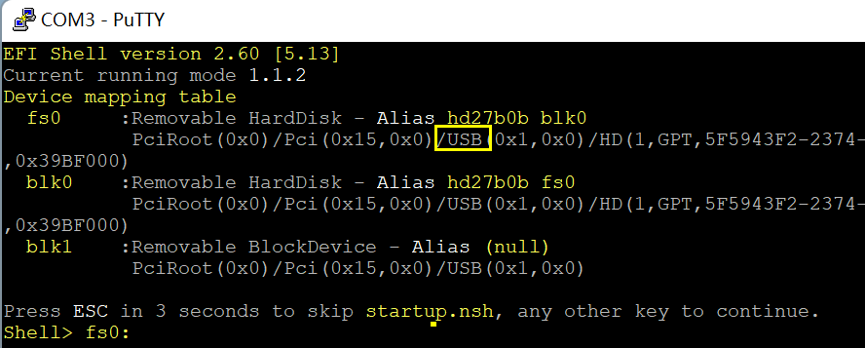
Input command:
fs0:then press Enter.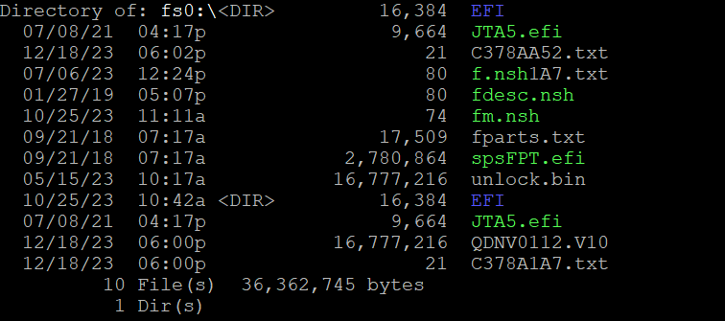
Option A: Update BIOS only (No SFP port speed configuration)
Run command:
f.nshPower off the device and restart.
Option B: Update BIOS + Configure SFP port speed (C3338R / C3558R models ONLY)
Run command:
fdesc.nshPower off the device and restart.
Run command:
fm.nshPower off the device and restart.
Important Note: MAC addresses need to be rewritten after finishing SFP port speed configuration.